Essentials Guide · Participants
Join, participate, review, and download
This visual walkthrough takes you from receiving a session code to downloading your completed module summary.
Step 1
Join the session
- Open learnsai on your phone, tablet, or computer.
- Select Join a session.
- Enter the session code exactly as supplied by your trainer.
- Select Join session.
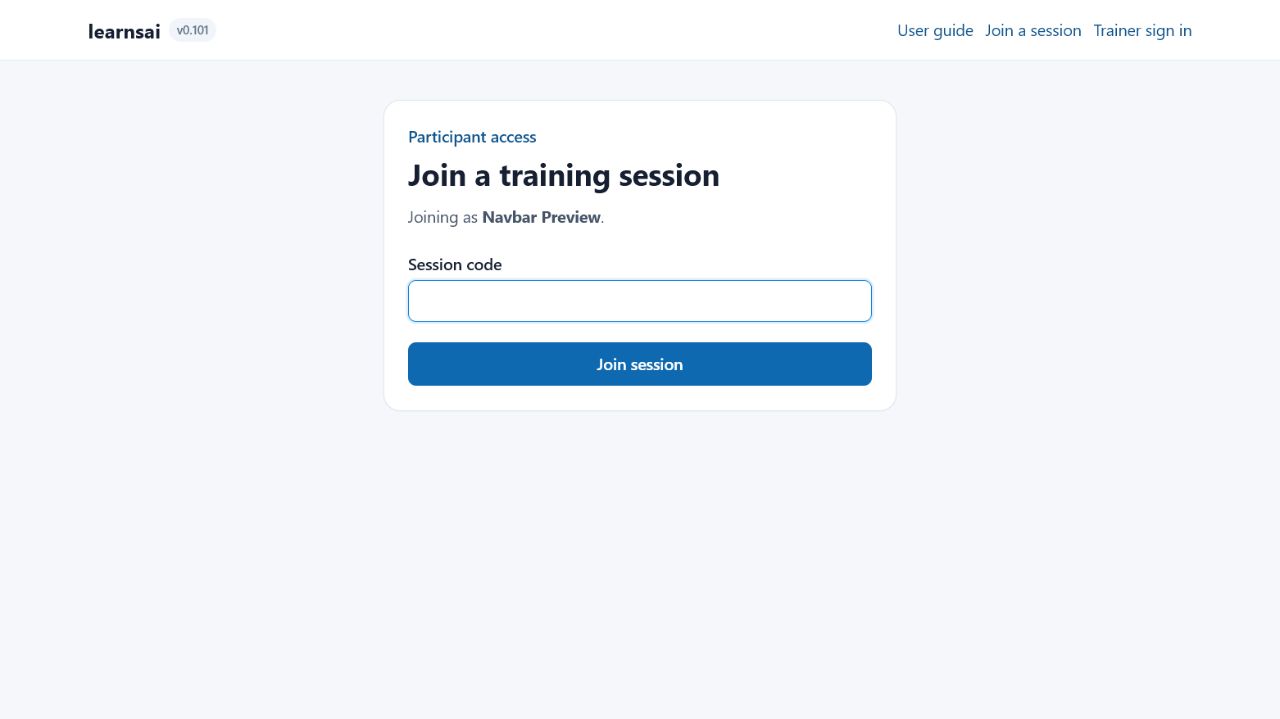
Code not accepted? Check letters and numbers, then ask the trainer to confirm that the session is active.
Step 2
Register on your first visit
If this browser does not yet know you, learnsai asks for an email address and username. There is no participant password.
- Enter your email address.
- Enter the name you want the trainer to see.
- Select Register. You will enter the session automatically.
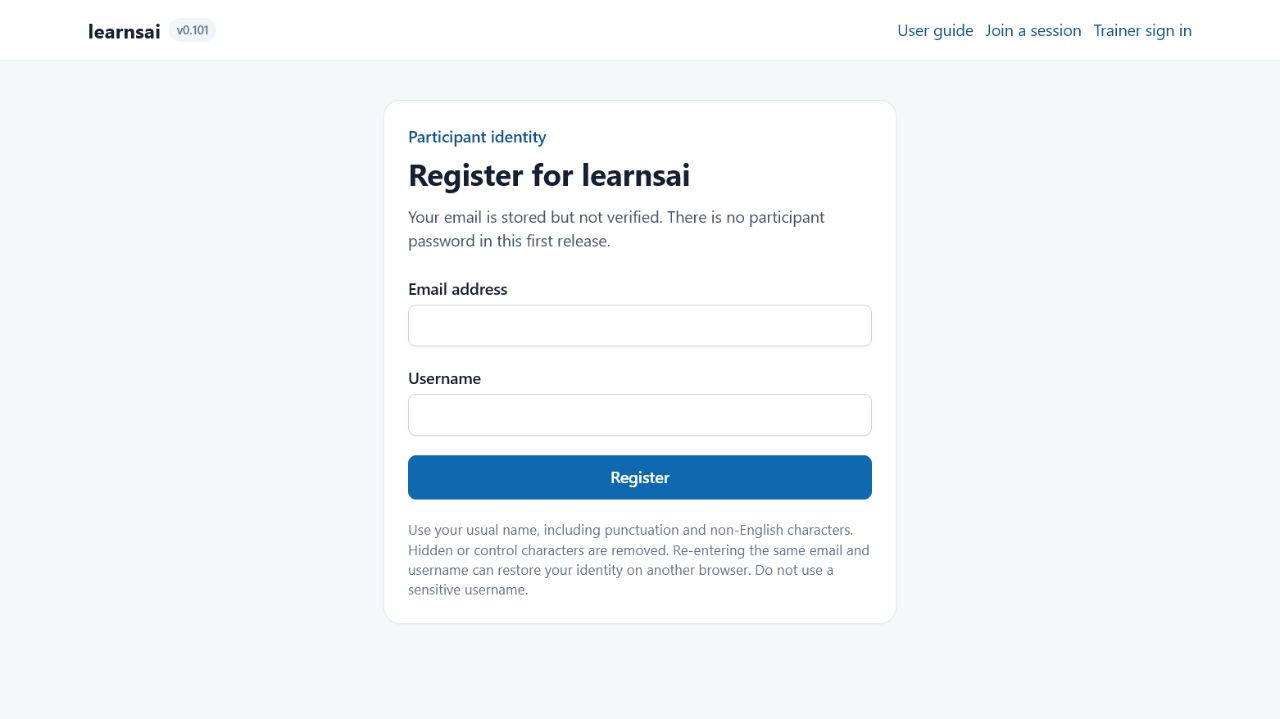
Returning on another device? Enter the same email and username to restore your participant identity.
Step 3
Answer a question
Your screen follows the trainer. When a question is open, its answer controls and submission button become available.
- Read the question and any instructions.
- Select or type your answer.
- Select Submit response.
- Look for the Response saved message. If revision is allowed, the button changes to Update response.
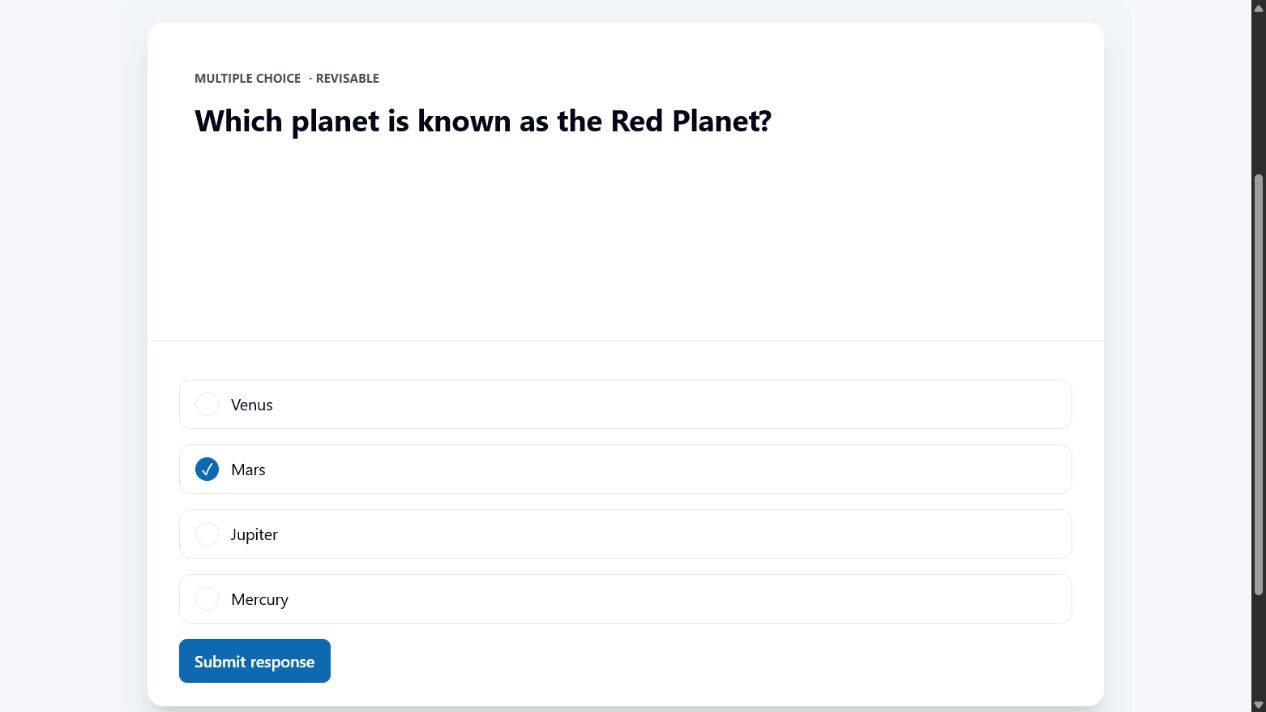
Typing a longer answer? learnsai temporarily saves unsent text in this browser. If the page refreshes, return to the question and check the restored draft before submitting.
Step 4
Review an unlocked module
The trainer decides when a module becomes available under Unlocked review.
- Scroll to Unlocked review.
- Select a numbered slide or question to open it.
- Use Previous and Next below the current item to move through the module in order.
- Select Return to live when you want to follow the trainer again.
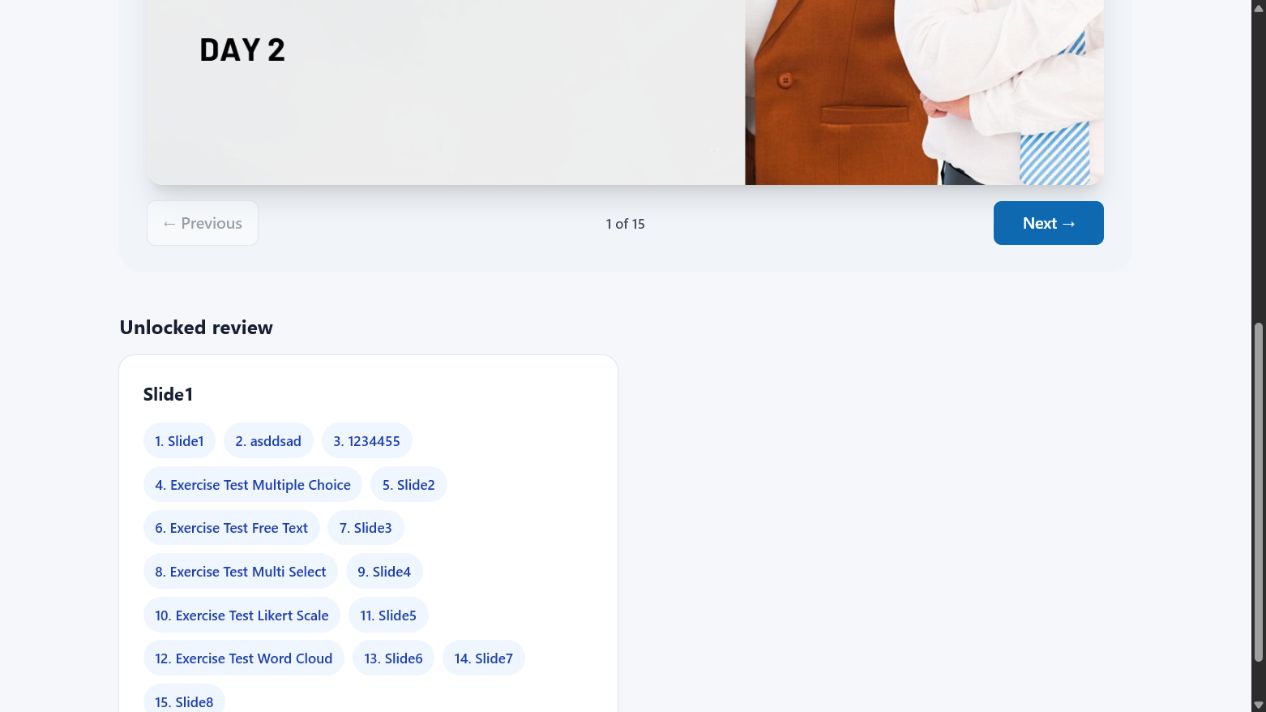
No review links yet? Continue following the live session. The links appear only after the trainer unlocks the module.
Step 5
Download your module summary
At the end of an eligible module, select Download my module summary (PDF).
- The PDF is landscape and follows the same order as the module.
- It includes slides, questions, your identified answers where applicable, answer explanations, and group results.
- Anonymous questions show group results without attaching an individual answer to you.
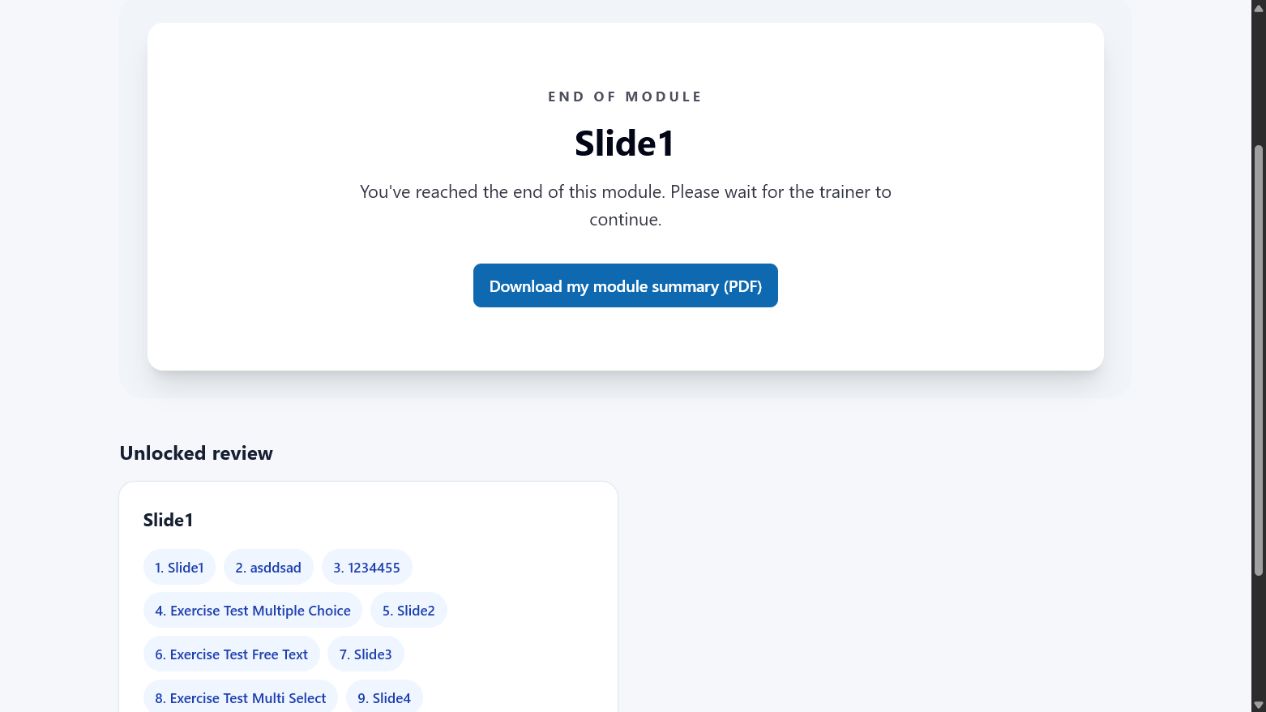
Button not visible? The module may not be complete or unlocked yet. Ask the trainer to confirm its status.