For participants
Join, participate, review, and download
Learn how to enter a session, register on your first visit, answer questions, revisit an unlocked module, and download your landscape PDF summary.
Open Essentials Guide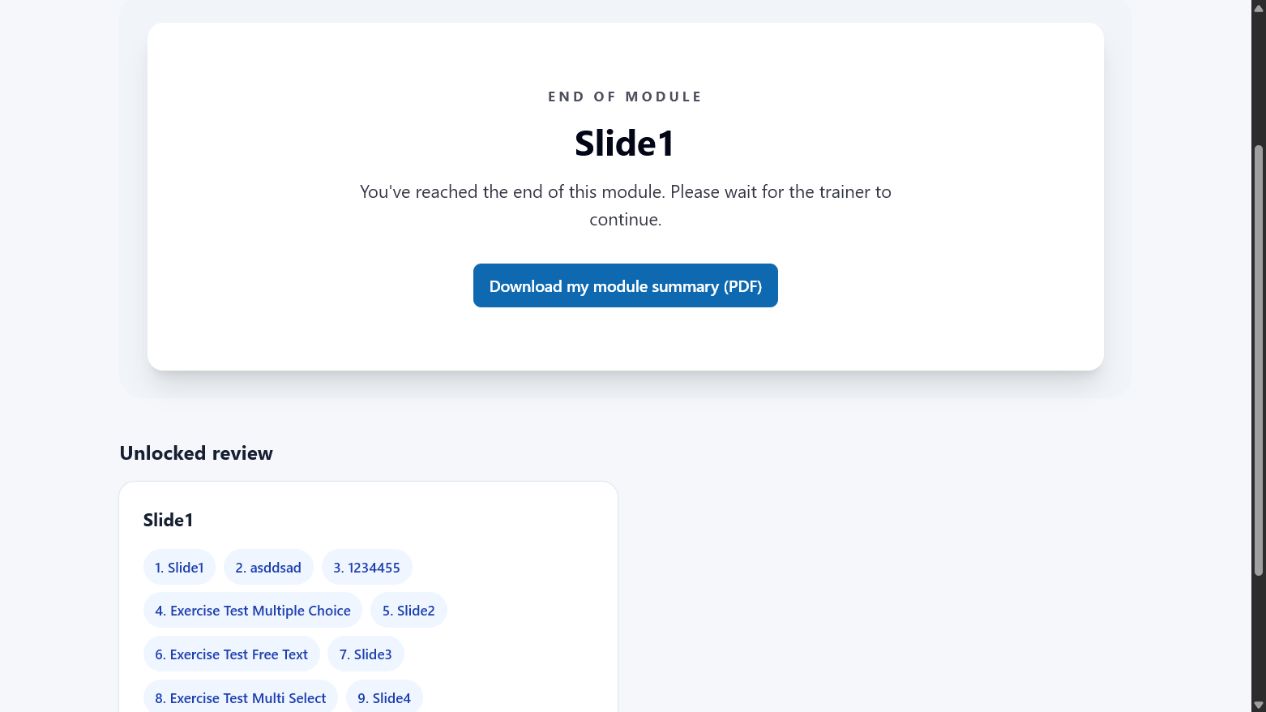
Help and guidance
Learn the essentials of preparing, delivering, and participating in a learnsai session.
learnsai is an interactive training platform that helps trainers deliver structured, engaging learning sessions to participants.
Trainers can create courses made up of modules, presentation slides, and interactive questions. During a live session, the trainer controls what participants see, opens and closes question submissions, reviews responses, and decides when completed modules become available for review.
Participants join a session using a session code. They can follow the trainer's presentation on their own device, answer questions, choose their preferred visual theme, and revisit modules that the trainer has unlocked.
A separate presenter screen provides a clean, full-screen display designed for projectors, large monitors, and televisions.
Follow a real task from beginning to end with numbered instructions and screenshots from learnsai.
For participants
Learn how to enter a session, register on your first visit, answer questions, revisit an unlocked module, and download your landscape PDF summary.
Open Essentials Guide
For trainers
Learn how to choose a course module, launch a session, share the join code, control questions and results, unlock review, end delivery, and download anonymous summary PDFs.
Open Trainer Essentials Guide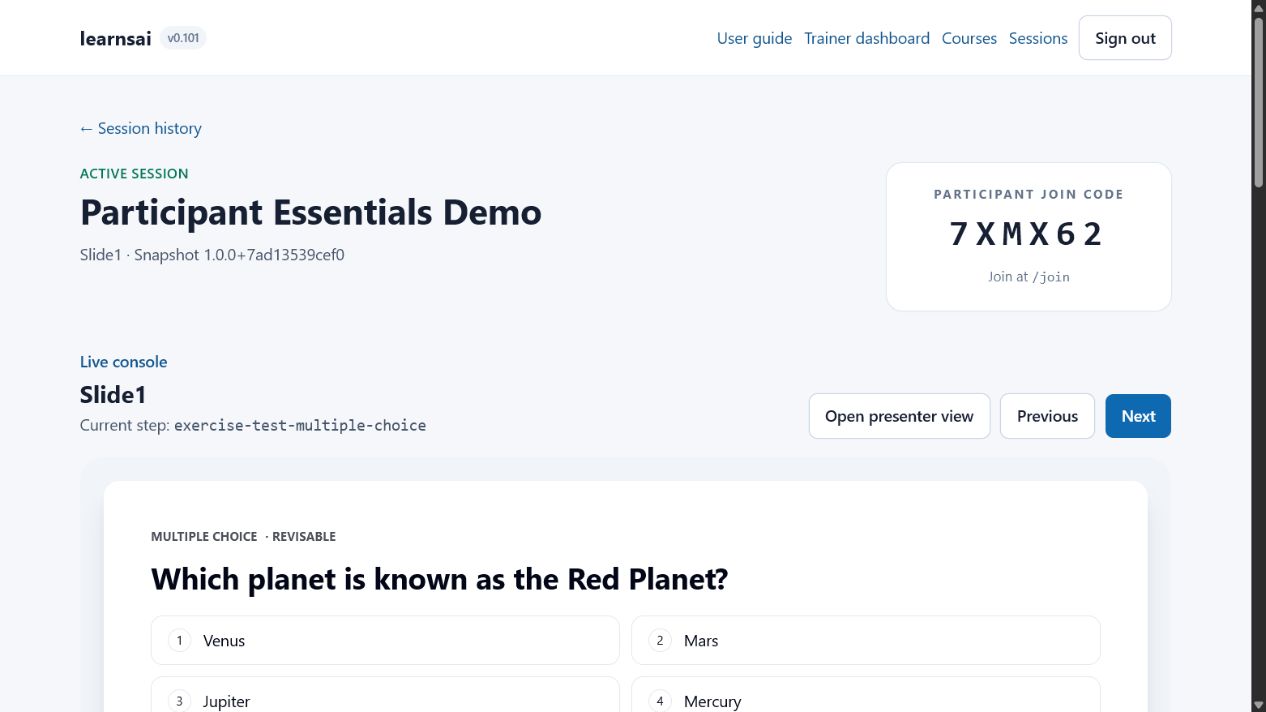
A quick reference to the terms used throughout learnsai.
| Concept | Brief explanation |
|---|---|
| Course |
A complete training programme containing one or more modules. |
| Course editor |
The workspace where a trainer arranges slides and questions within modules. |
| Module |
A section of a course containing an ordered sequence of slides and questions. |
| Module review |
Access to previously completed modules. The trainer decides which modules participants can revisit. |
| Participant |
A person who joins a live session, views content, and submits responses. |
| Presenter screen |
A simplified full-screen view intended for a projector, television, or large display. |
| Q&A |
An interactive question placed between slides. Supported formats include multiple choice, multi-select, Likert scale, free text, and word cloud. |
| Questionnaire JSON |
A UTF-8 JSON file used to insert one or more supported questions into a module. Learn more |
| Session |
A live delivery of a course. Each session maintains its own participants, progress, responses, and module-access settings. |
| Session code |
A short code participants use to join a specific training session. |
| Slide |
A presentation step shown during a training session. Slides may use an image, PowerPoint source, or an interactive HTML package. |
| Slide - HTML |
An interactive web slide imported as a ZIP package containing HTML, CSS, JavaScript, and local assets. Learn more |
| Slide - Image |
A PNG or other supported image displayed as a fixed visual slide. |
| Slide - PowerPoint |
A slide originating from a PPTX presentation. PowerPoint import will be improved in a later release. |
| Submissions |
The period during which participants may answer the current question. The trainer controls when submissions are open or closed. |
| Theme |
A visual style selected independently by each participant, such as Studio, Midnight, or Warm. |
| Trainer |
The person who prepares courses and controls live training sessions. |
| Workflow - Trainer |
|