Essentials Guide · Trainers
Prepare and run a live session
This visual walkthrough covers the essential trainer workflow, from choosing a module to downloading the final anonymous report.
Step 1
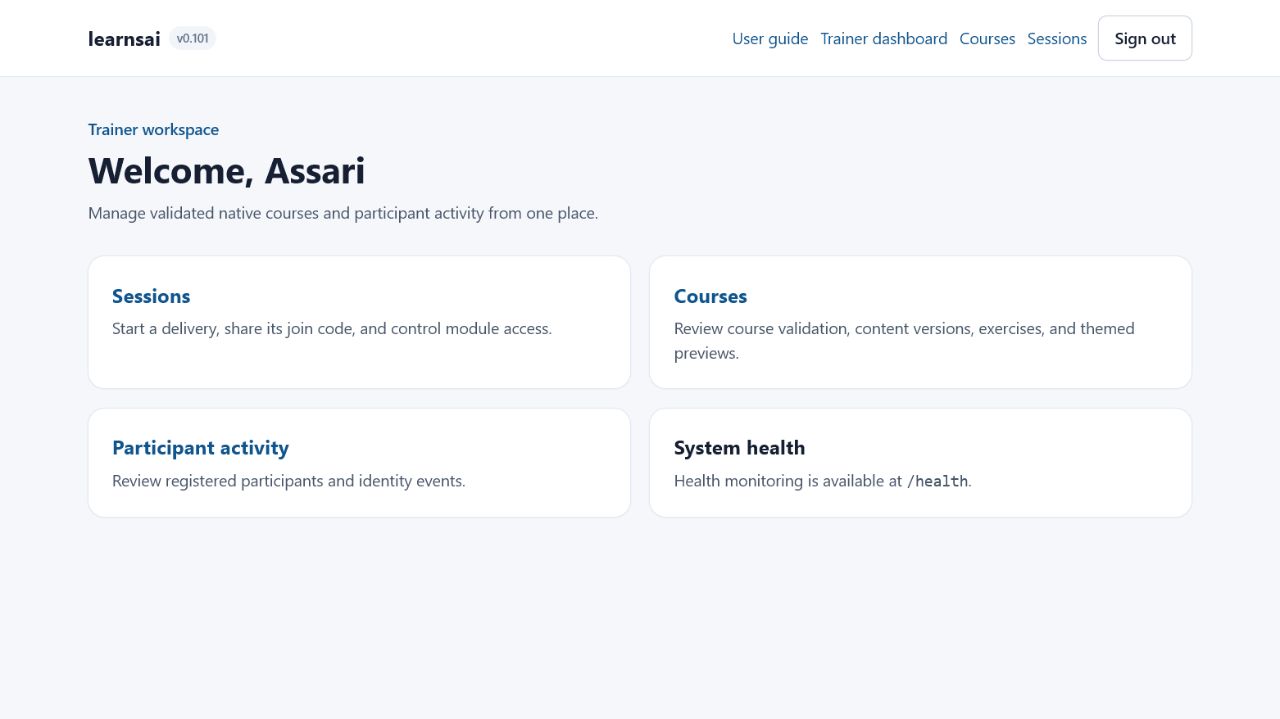
Open the trainer workspace
- Select Trainer sign in and enter your trainer account details.
- Use Courses to prepare or launch content.
- Use Sessions to reopen an active session or view session history.
- Use Participant activity when you need attendance and participant records.
Step 2
Choose and launch a module
- Open Courses and select the required course card.
- Review the modules available for that course.
- Select Start module beside the module you are delivering. You do not need to begin with Module 1.
- Confirm or edit the session name, then start the session.
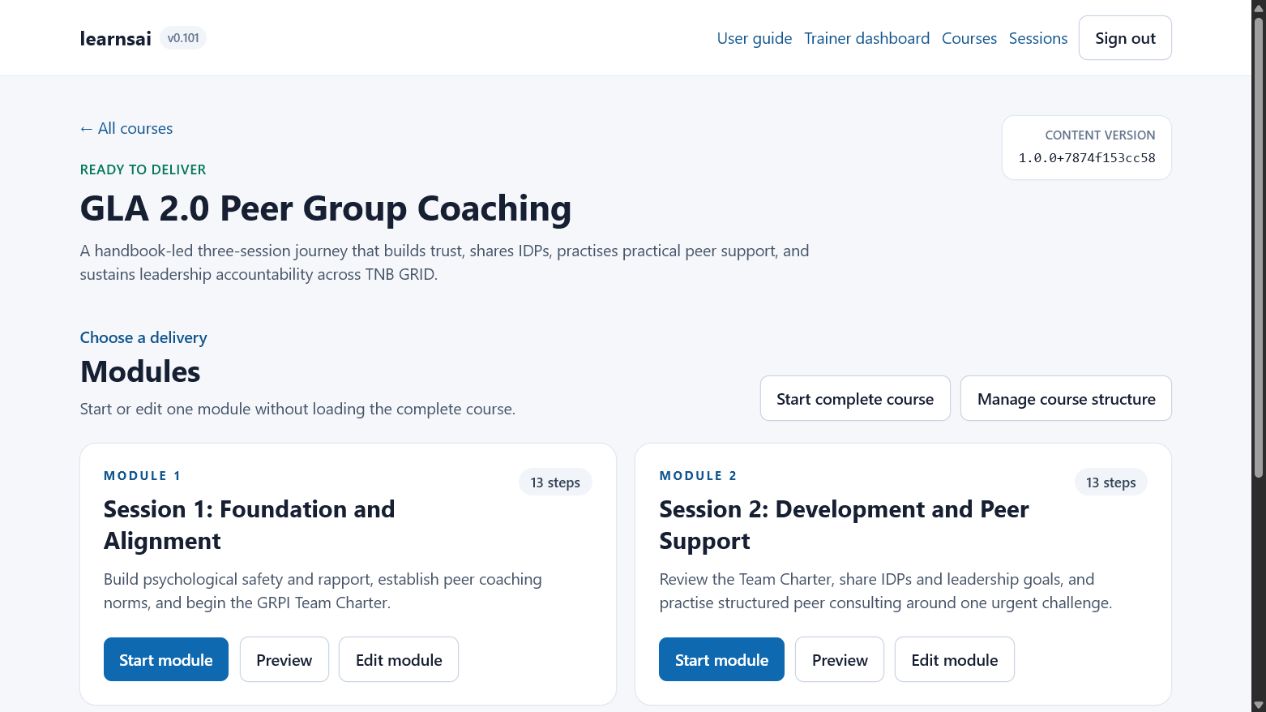
Need the full course? Select Start complete course when one session should contain all modules.
Step 3
Share the code and deliver
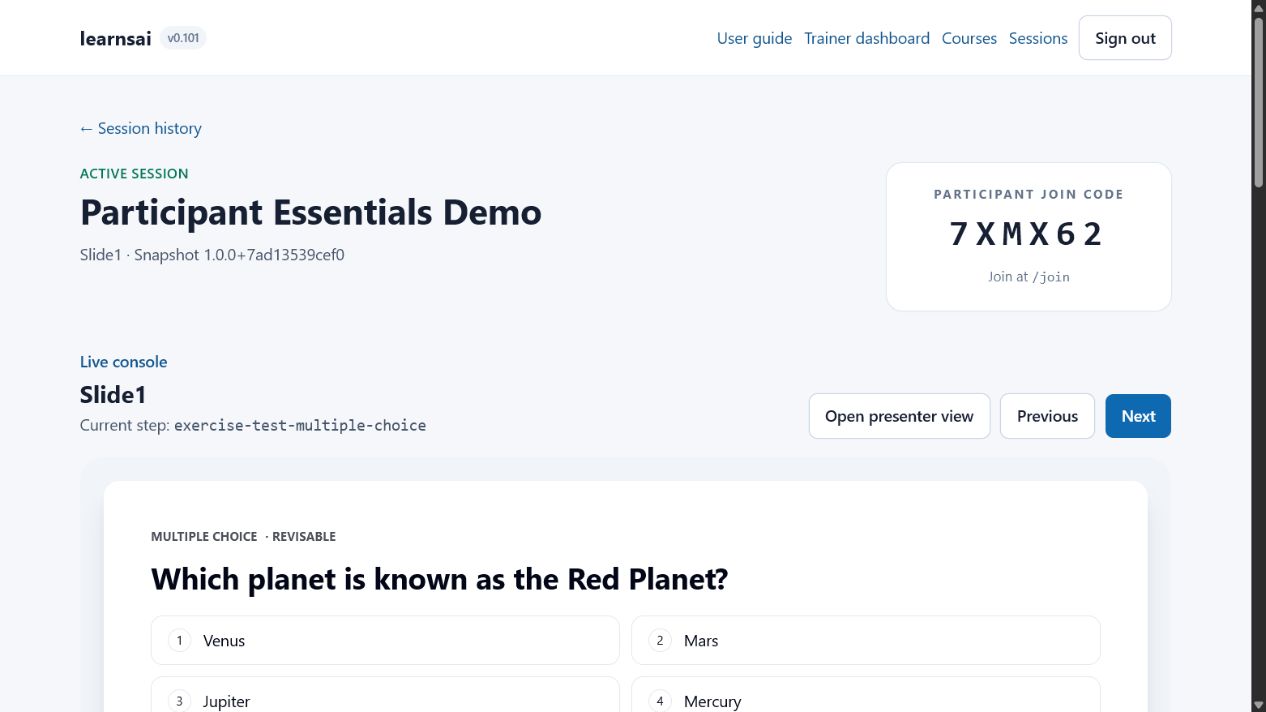
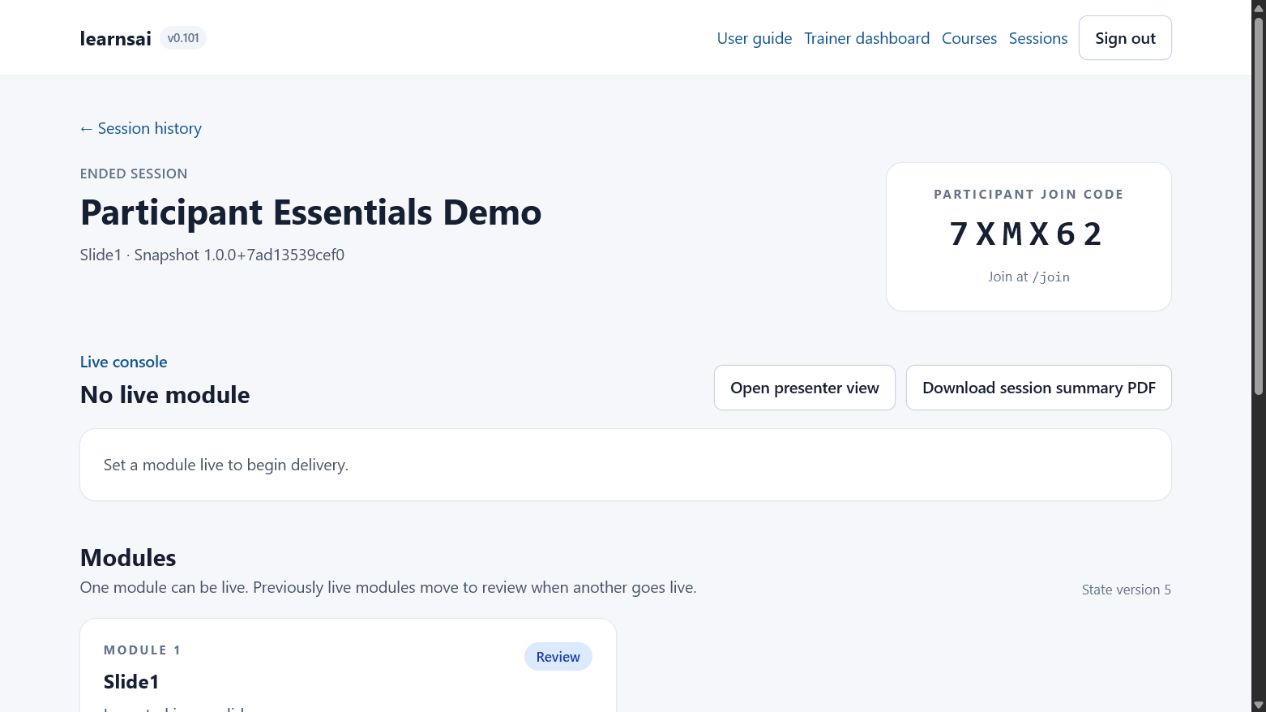
- Share the six-character Participant join code displayed near the top of the console.
- Select Open presenter view for the projector or main display.
- Use Previous and Next to move through the current module.
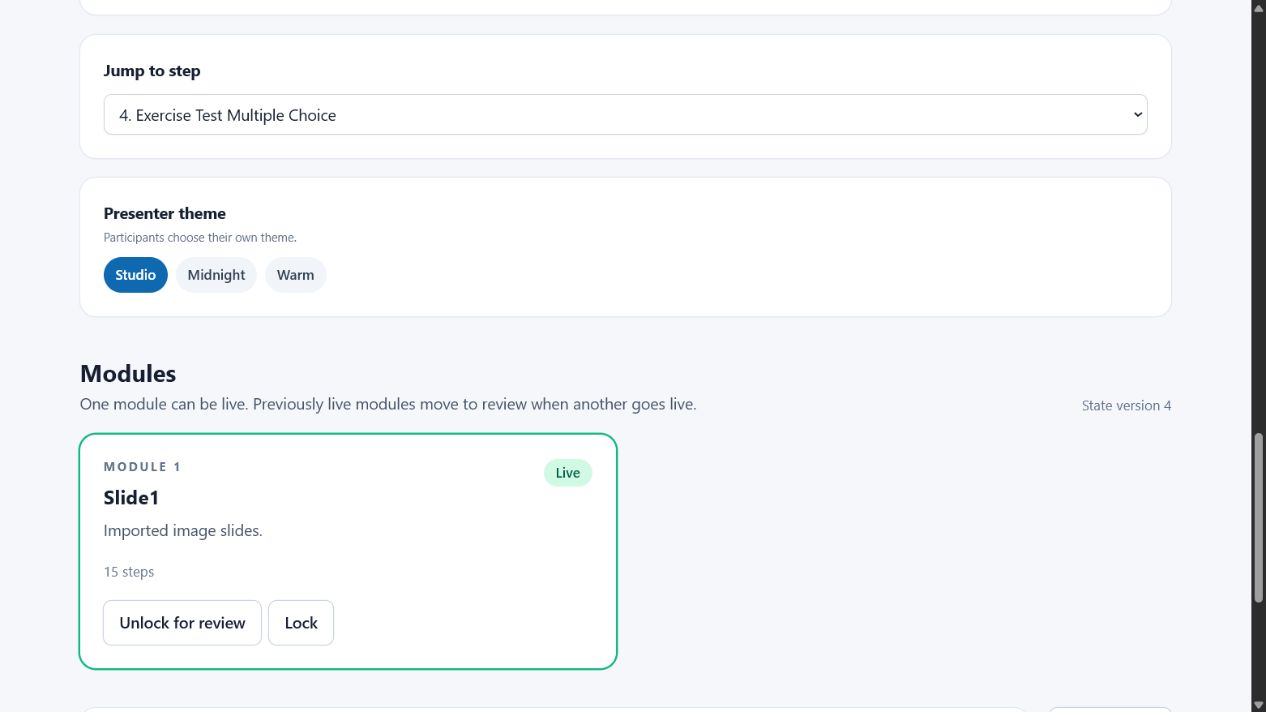
- Use Jump to step when you need to move directly to a specific slide or question.
Presenter screen not scrolling? Click inside the presenter tab first, then use the mouse wheel, trackpad, or keyboard to move through content that is taller than the screen.
Step 4
Control questions and results
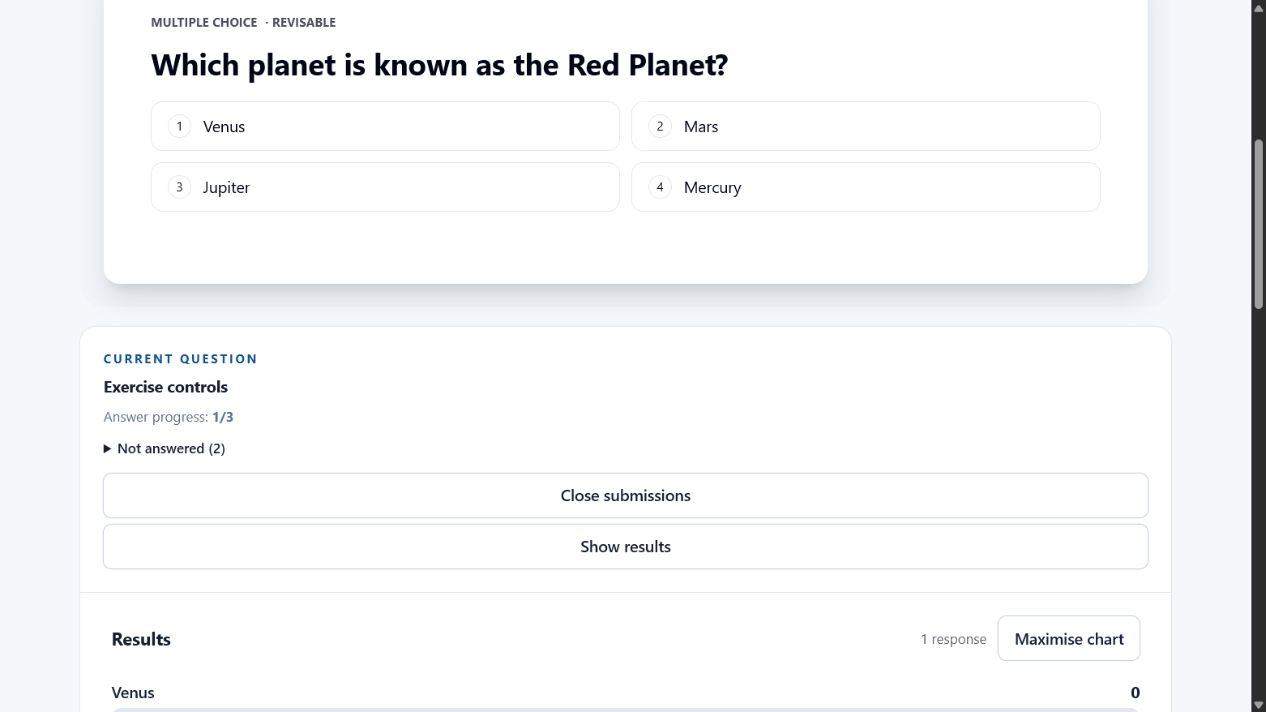
When the current step is a question, the Exercise controls panel appears automatically.
- Select Open submissions when participants may begin answering.
- Watch Answer progress and expand Not answered when follow-up is needed.
- Select Close submissions when the response period ends.
- Select Show results when the group is ready to discuss the aggregate response.
- Select Maximise chart for a room-friendly results display.
Remember: identified questions can show who has not answered during delivery. Structurally anonymous questions never attach an answer to a participant.
Step 5
Unlock participant review
- Scroll to the Modules section of the session console.
- Select Unlock for review on a completed module.
- Participants can then revisit that module using its numbered steps and Previous/Next controls.
- Select Lock only when review access should be removed.
Step 6
End the session
End the session only after live delivery and submissions are finished.
- Confirm that the required modules are complete or available for review.
- Confirm that participant responses have been submitted.
- Select End session.
- The session moves to history and can no longer be changed.
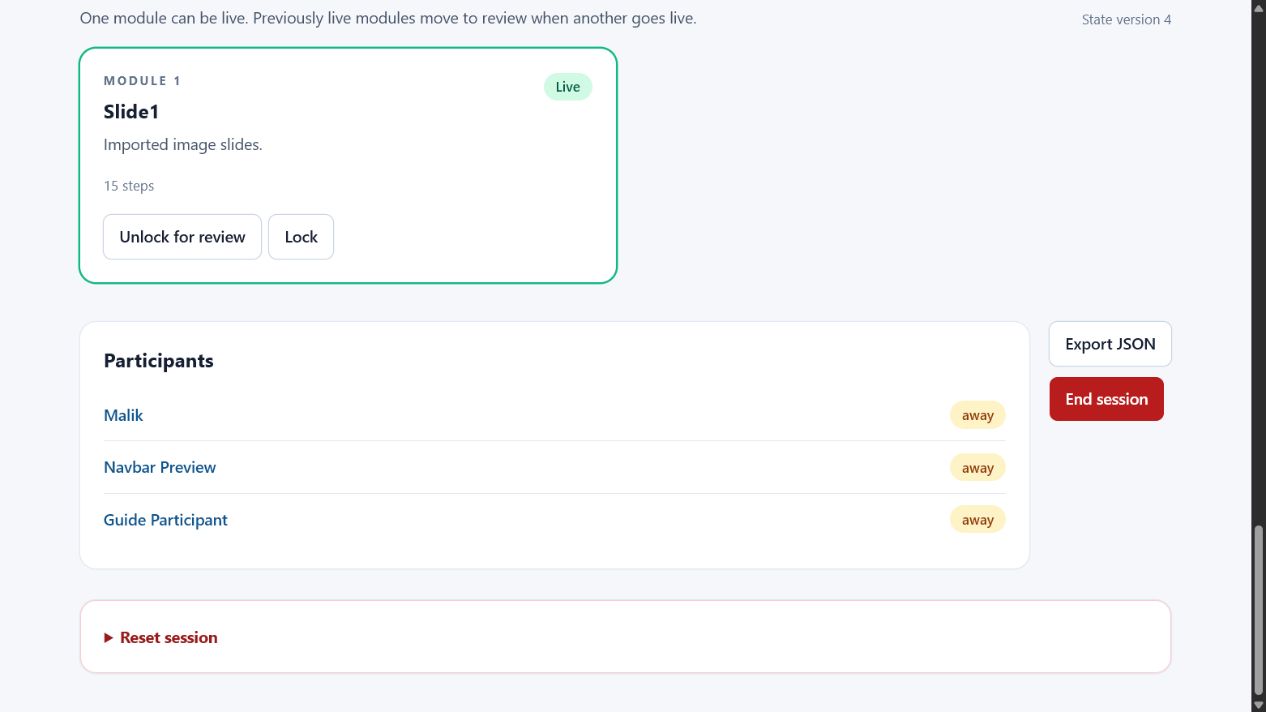
End versus reset: ending preserves the session and reports. Reset clears response and live runtime data and should be used only with the required confirmation code.
Step 7
Download anonymous trainer PDFs
- For a completed or reviewable module, select Download anonymous module PDF.
- After ending the session, select Download session summary PDF for the complete session.
- The same full-session download is available from Sessions history.
- Trainer PDFs use A4 landscape, preserve the learning sequence, and include all submitted answers anonymously.
- Participant names, emails, identifiers, timestamps, submission order, and answer-to-attendance links are excluded.
Need raw data? Export JSON remains available for structured system records. Use the anonymous PDF for trainer review and sharing.